

Excel can do more than just simple math. That’s thanks to its bevy of built-in functions and min-formulas that simplify the creation of more complex formulas.
In my decade-long experience with Excel, I’ve found that one of the more useful functions is the COUNTIF function.
![Download 10 Excel Templates for Marketers [Free Kit]](https://no-cache.hubspot.com/cta/default/53/9ff7a4fe-5293-496c-acca-566bc6e73f42.png)
You can use COUNTIF to count the number of cells that contain a specific value or range of values. It’s easier to use COUNTIF than to manually count yourself.
How to Use the COUNTIF Function in Excel
The COUNTIF function in Excel counts the number of cells in a range that meet the given criteria. It doesn’t total the cells; it simply counts them. I’ve found it useful for counting cells that contain a specific value or range of values.
For example, let’s say you have a spreadsheet that contains customer contact information, including street addresses and ZIP codes. You can easily use the COUNTIF function to count how many customers live in a given ZIP code — and you don’t even have to sort the addresses by ZIP code to do it.
Let’s work through the process step-by-step.
1. =COUNTIF()
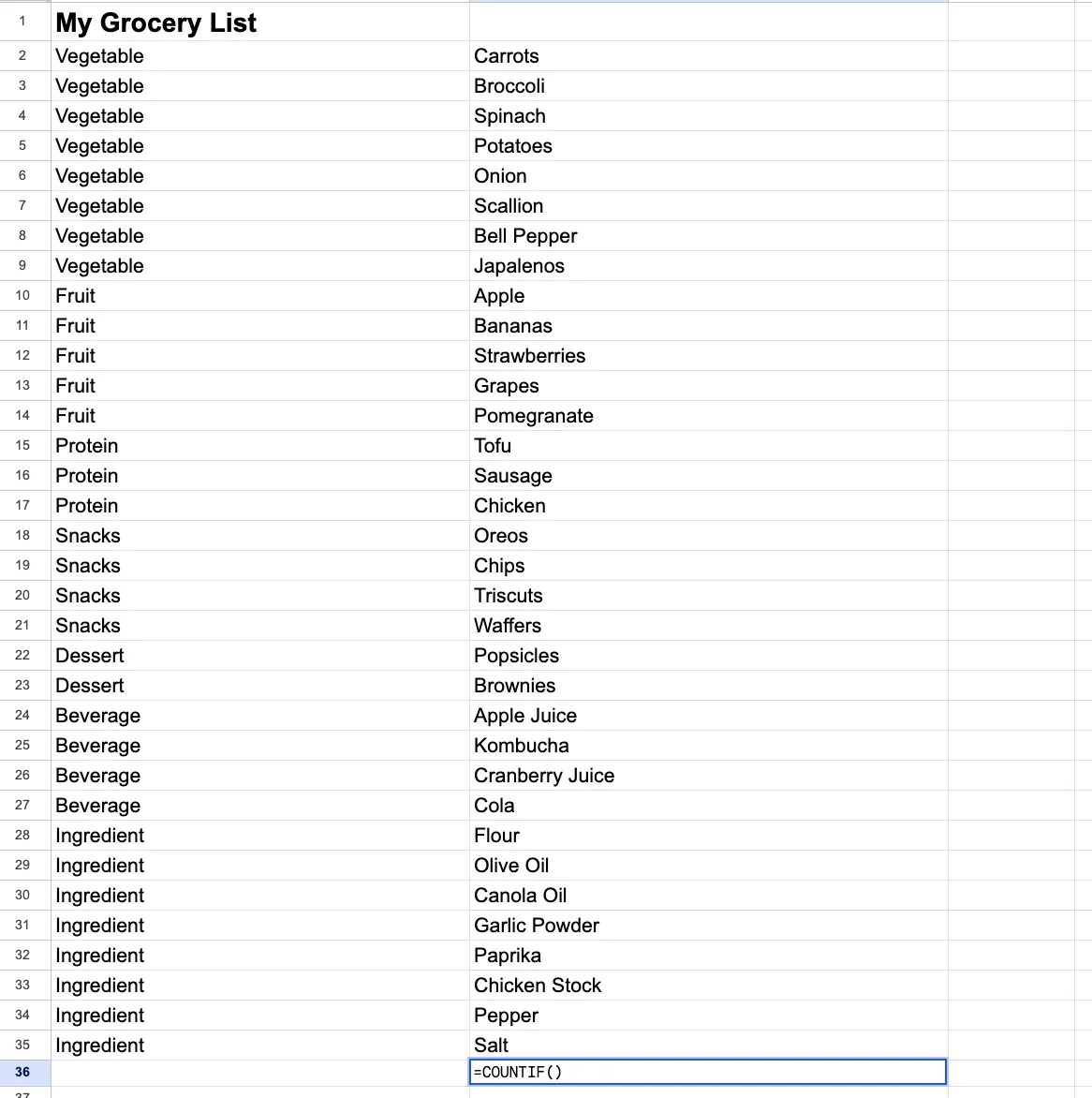
Begin by entering the following into the cell where you want to place the answer:
=COUNTIF()
For this example, we’ll use a grocery list that I’ve written. The different items I want to buy are sorted by type, like vegetables and fruit.
2. Define a range of cells.
For the COUNTIF function to work, you have to enter two arguments between the parentheses — the range of cells you’re looking at and the criteria you want to match.
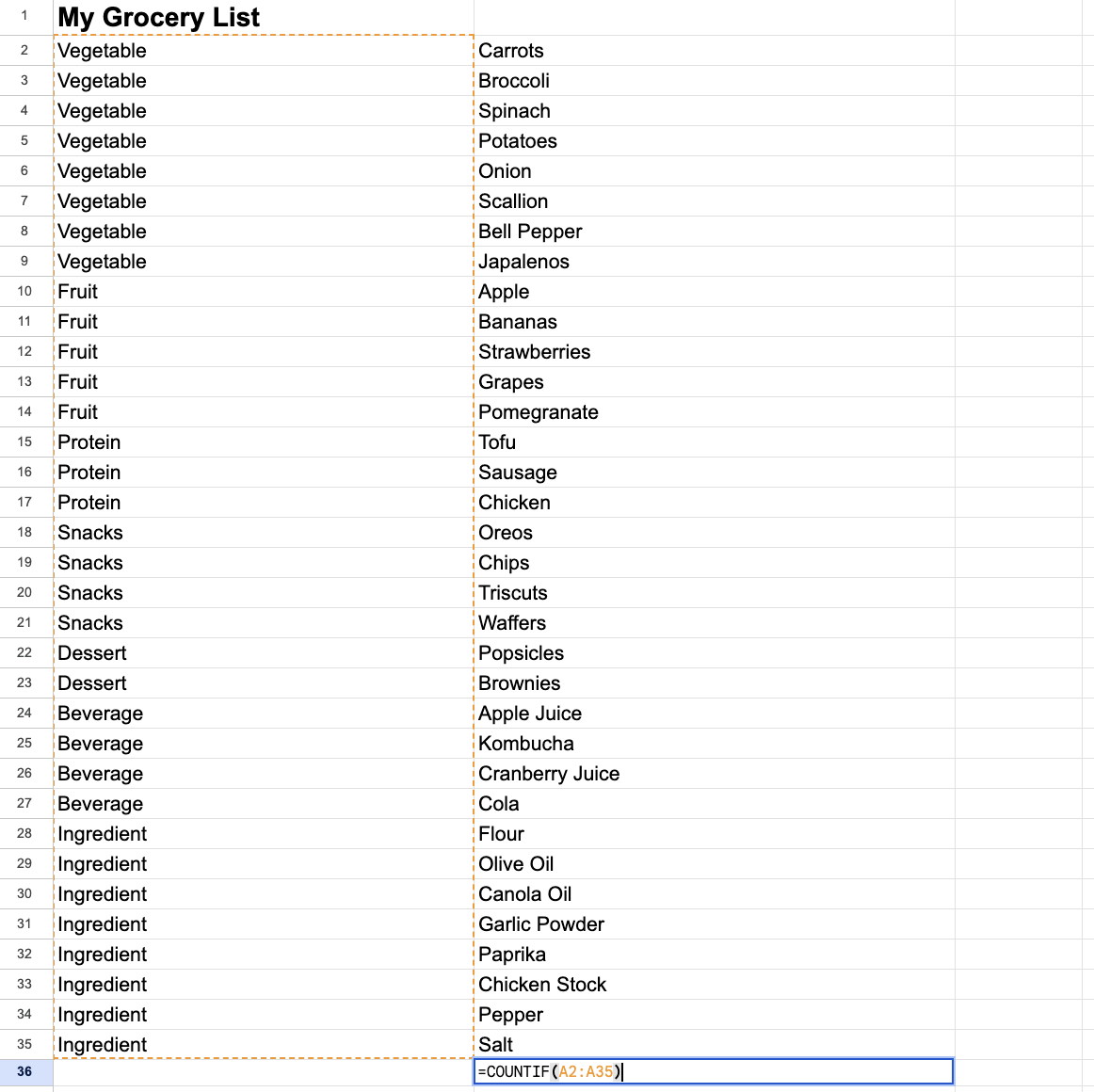
Place your cursor within the parentheses and either manually enter the range of cells (e.g., D1:D20) or use your mouse to highlight the range of cells in your spreadsheet.
Assuming your ZIP code values are in column D from row 1 to row 20, the function should now look like this:
=COUNTIF(A2:A35)
3. Add a comma.
Next, type a comma after the range, like this:
=COUNTIF(A2:A35,)
4. Define your search criteria.
You now need to enter the criteria or value that you want to count after the comma, surrounded by quotation marks.
In our example, let’s say you’re looking to see how many vegetables are on your list. In this instance, the criteria you’re counting is Vegetable, and your function should now look like this:
=COUNTIF(A2:A35, “Vegetable“)
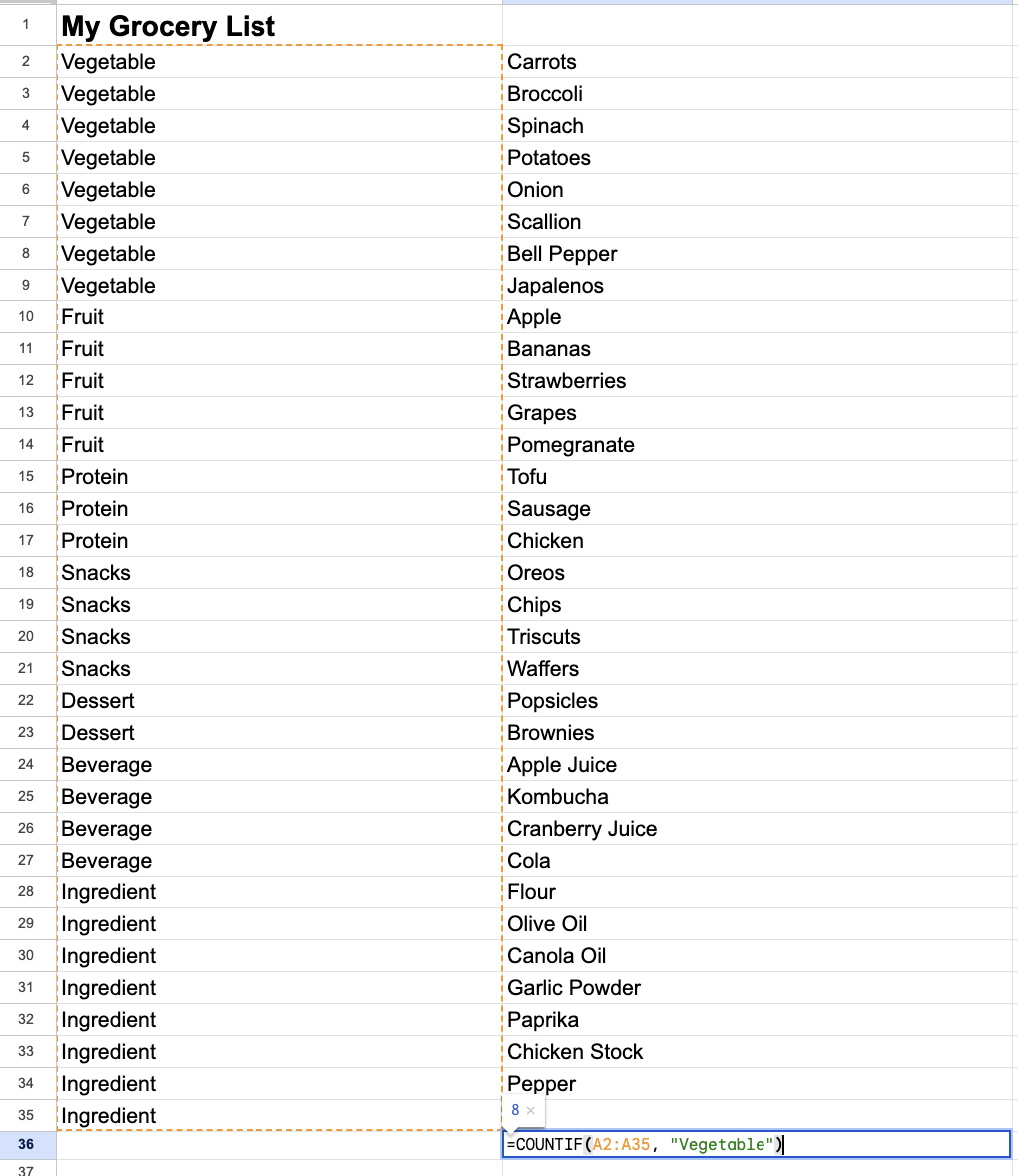
Note that your criteria can be a number (“10”), text (“Los Angeles”), or another cell (C3). However, if you reference another cell, you don’t surround it with quotation marks. Criteria are not case-sensitive, so you could enter “Red,” “red,” or “RED” and get the same results.
5. Activate the function.
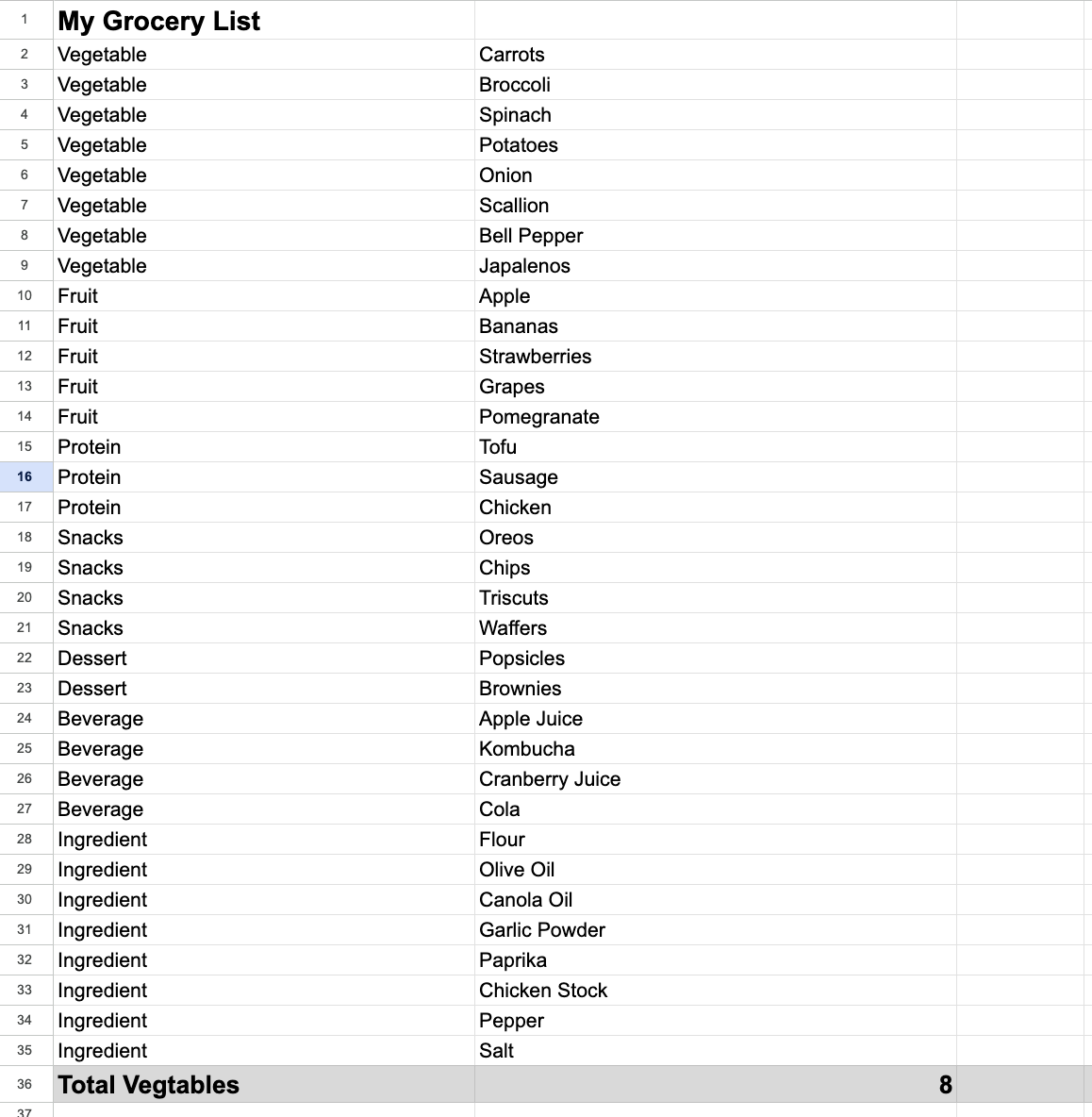
Press Enter, and the function activates, returning the number of cells that match your argument.
Tips for Using the COUNTIF Function
Many users, myself included, have discovered that you can use the COUNTIF function in many different ways besides counting specific values. Here are three tips I recommend for extending the use of the COUNTIF function.
Use wildcard characters for partial matches.
You don’t have to reference a specific value or criteria. If you only know part of the value you want to count, you can use the * wildcard character to match any value in that part of the value.
For example, let’s say you have a list of addresses. If you want to match all ZIP codes that start with the numbers 46 (such as 46032, 46033, and 46450), you would enter 46 followed by the * wildcard, like this:
=COUNTIF(D1:D20,“46*“)
You can use the wildcard character at either the beginning or the end of the value string. For example, to count all cells that end with the letters “polis,” enter the following:
=COUNTIF(D1:D20,“*polis“)
This will count cells that contain the cities of Indianapolis and Minneapolis.
Count values that are greater than or less than a number.
If you’re working with numbers, you may want to count cells with values greater than or less than a given value. You do this by using the mathematical greater than (>) and less than (<) signs.
To count all cells that have a value greater than a given number, such as 10, enter this:
=COUNTIF(D1:D20,“>10“)
To count cells that are greater than or equal to a number, enter this:
=COUNTIF(D!:D20“>=10“)
To count all cells that have a value less than a given number, enter this:
=COUNTIF(D1:D20“<10“)
To count cells that have a value less than or equal to a given number, enter this:
=COUNTIF(D1:D20“<=10“)
You can even count cells with a value not equal to a specific number. For example, to count cells that are not equal to the number 10, enter this:
=COUNTIF(D1:D20“<>10“)
In all these instances, remember that the criteria, including the less than, greater than, and equal signs, must be enclosed within quotation marks.
Count one value OR another.
The COUNTIF function can also be used to count multiple criteria—that is, cells that contain one value or another.
For example, you might want to count customers who live in either Los Angeles or San Diego. You do this by using two COUNTIF functions with a + between them, like this:
=COUNTIF(D1:D20,“Los Angeles“)+COUNTIF(D1:D20,“San Diego“)
To add even more values, enter another + and COUNTIF function.
If you want to get even more out of Excel, check out our article on how to use Excel like a pro. You’ll find 29 powerful tips, tricks, and shortcuts that will make Excel even easier to use.
Getting Started
If you’re looking to count the number of items that match specific criteria, the COUNTIF function is the way to go. You could just sort on that column and manually count the entries, but using COUNTIF is a whole lot easier.
Now, try it out and save yourself some time.